Account & login
Customise the daily shipment report
Pick the columns, the frequency and which shipments it covers — and why some columns say "attachment only".
The daily shipment report is an email with a spreadsheet attached. Everything about it is configurable in Settings → Notifications, under Daily shipment report.
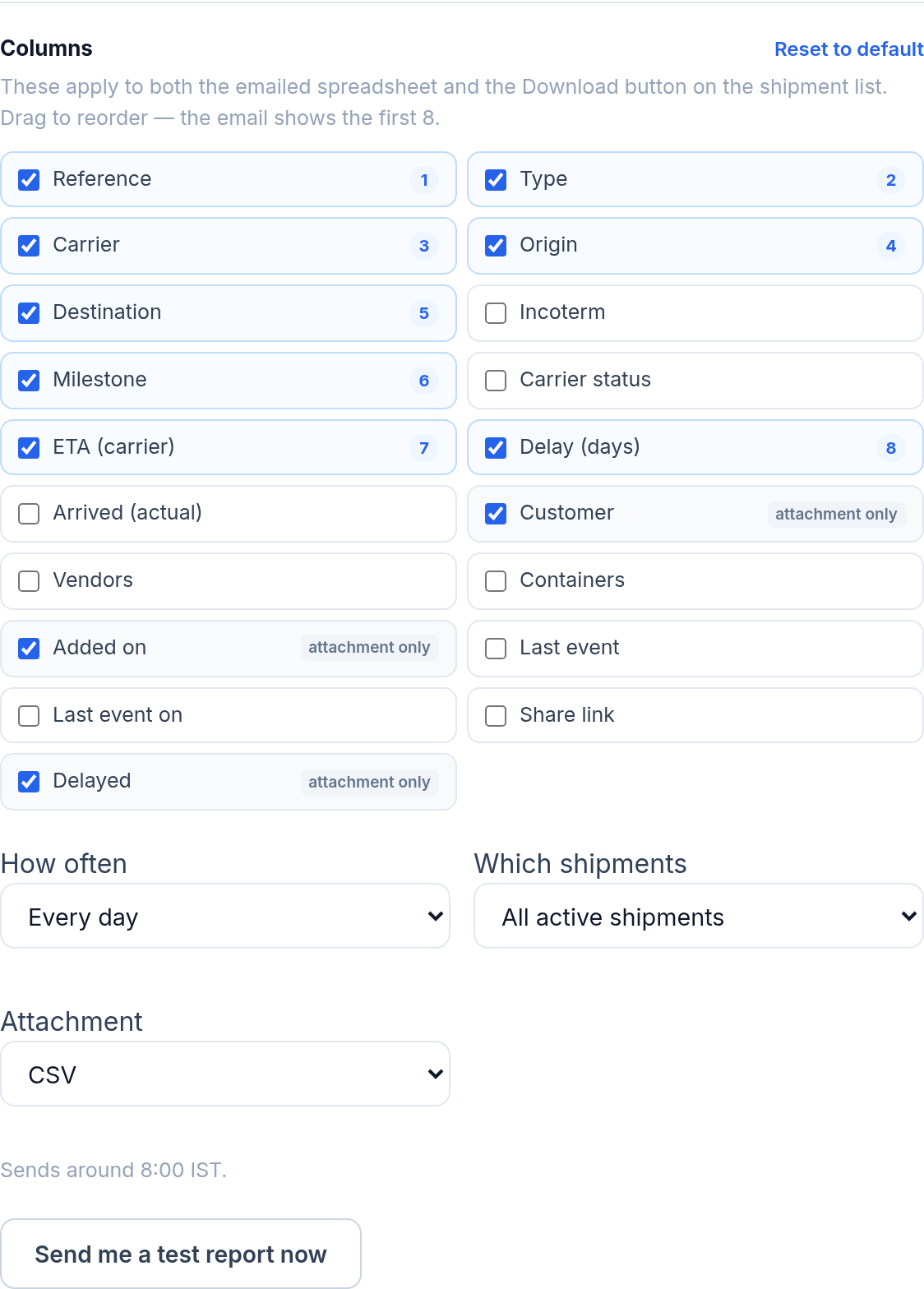
Columns
Tick the columns you want and drag them into the order you want. The number on each tick shows its position.
The email body shows the first 8 columns. Anything past that is tagged attachment only — it is still in the spreadsheet, it just does not fit in a table that has to stay readable on a phone. If a column matters more than its position suggests, drag it above the eighth.
These columns apply to both the emailed spreadsheet and the Download button on the shipment list, so setting them up once covers both. Reset to default puts them back.
Frequency and scope
| Setting | Options | Use it when |
|---|---|---|
| How often | Every day · Weekdays only · Once a week (you pick the day) | Weekdays only if nobody reads it at the weekend; weekly for a management summary. |
| Which shipments | All active · Only delayed · Arriving in the next 7 days | Only delayed turns it into an exceptions report; arriving in 7 days into this week's to-do list. |
| Attachment | CSV · Excel | CSV imports cleanly into other systems; Excel keeps formatting. |
It sends around 08:00 IST.
If a column disappears
Some columns belong to higher plans. If your plan changes, any saved column no longer available is dropped and the page tells you exactly which ones. Your remaining columns and their order are untouched, so nothing else needs redoing.
Check it before waiting a day
Send me a test report now sends the report immediately with your current settings. Use it after any change rather than finding out at 08:00 tomorrow.
Was this helpful?