Account & login
Invite your team and choose roles
Add colleagues to your workspace, and exactly what owner, admin, member and viewer can each do.
Everyone on your team sees the same shipments, customers and reports. Invites and roles live in Settings → Team.
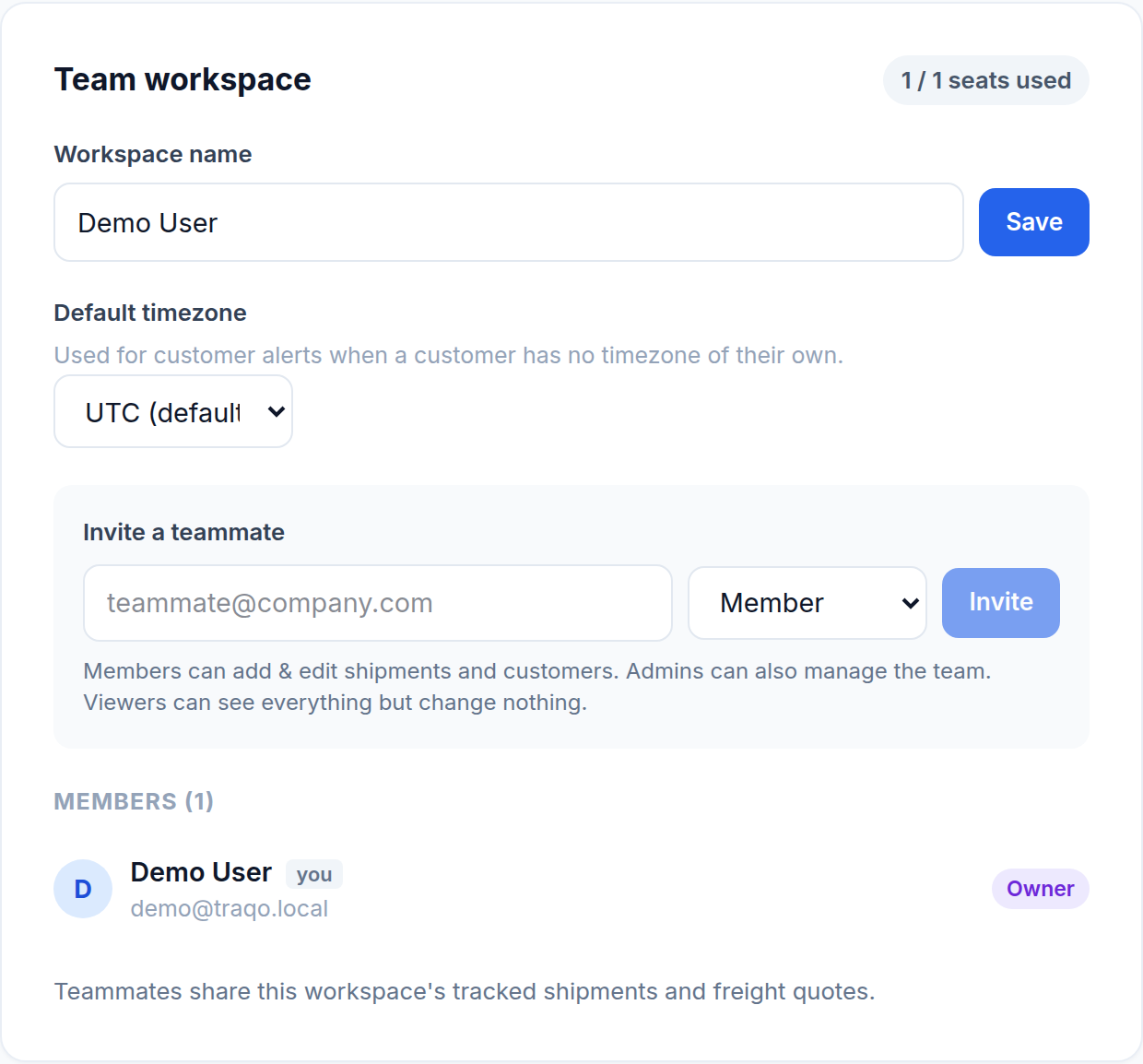
Invite someone
Enter their work email, pick a role and send. They get an email with a link; until they accept, the invitation shows as pending and can be revoked. Seats are counted against your plan, and a pending invitation holds a seat — revoke the ones that were never accepted.
What each role can do
| Role | See everything | Add & edit data | Manage the team | Billing & plan |
|---|---|---|---|---|
| Owner | Yes | Yes | Yes | Yes |
| Admin | Yes | Yes | Yes | No |
| Member | Yes | Yes | No | No |
| Viewer | Yes | No | No | No |
There is exactly one owner, and ownership cannot be transferred in-app yet, so pick it deliberately. “Add & edit data” covers shipments, customers and vendors.
Owner is not offered when you invite somebody; the assignable roles are admin, member and viewer.
What read-only actually means
A viewer is blocked at the server, not just in the interface — the buttons are hidden and the write is refused, so a viewer cannot add a shipment, edit a customer or spend money by any route.
One deliberate exception: a viewer can still raise a support ticket. Being read-only should not mean being unable to ask for help.
Choosing a role
Give the finance contact viewer unless they need to change data — they usually want the daily report and the invoices, both of which a viewer receives. Operations people want member. Reserve admin for whoever actually manages the team.
Was this helpful?