Billing & plans
How shipment slots are counted, and whether deleting frees one
The limit counts shipments you ADD in a billing period, not how many you currently hold — with one capped exception for genuine mistakes.
Short answer: your plan limit is a counter of shipments added during the billing period, not a live count of how many you are holding. Deleting a shipment normally does not give the slot back.

The banner on your shipment list says exactly this: "You've added N of M shipments this billing period". Added, not held.
Why it works that way
If deleting returned the slot, a single slot could be recycled endlessly — add, delete, add again — and the plan would mean nothing. The cost of tracking a container is incurred when we start tracking it, not while it sits in your list.
The exception, for genuine mistakes
Pasting the wrong number should not cost you a slot. So:
- A shipment deleted within 24 hours of being added is refunded — it never counts.
- That refund is capped at 3 per billing period, so the window itself cannot be used as a workaround. On an annual plan the cap scales with the cycle (36 a year), rather than giving an annual customer a twelfth of the allowance for twelve times the money.
Delete a mistake promptly and you will not be charged for it. Delete forty shipments at the end of the month and the count will not move.
Things that never consume a slot
- Re-tracking something you already track. References are deduplicated, so the same container added twice is one slot, not two — including when the carrier issues a fresh internal id on a re-track.
- A reference that does not resolve. A failed lookup is not a tracked shipment.
- Public tracking searches made without signing in.
When the counter resets
At the start of each billing period, not on the first of the month. The banner shows the exact date yours expires.
If you need more

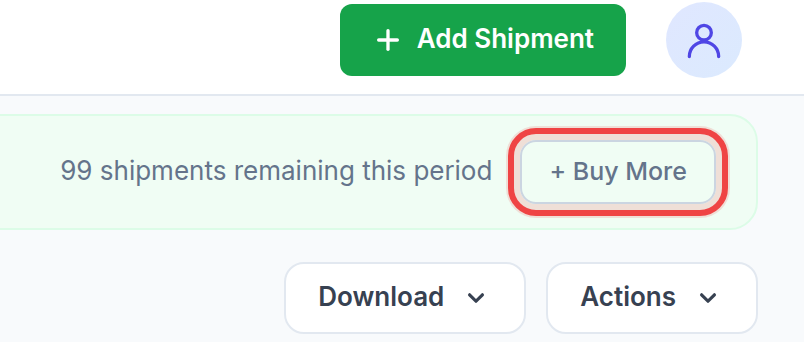
Both routes are on the billing page: move up a plan, or buy add-on slot packs, which extend even the top plan. If you are already on the largest standard plan, that is the point to talk to us about volume rather than keep buying packs.
Was this helpful?